Linking Firebase to Google Ads: Setup and Pitfalls
This is placeholder copy. It exists so you can see how headings, lists, tables, code blocks and callouts render. Open this file and replace the body with your own writing.
Open with the scope of the article and what the reader will be able to do by the end. Keep it short enough that someone arriving from search can tell within three seconds whether this is the page they wanted.
What you need first
List the prerequisites before the walkthrough — permissions, accounts, SDK versions. These are the things that stop people halfway through.
- Edit access to the Firebase project
- The app source and a working build environment
- A physical device or simulator
The steps
Numbered steps, one action each, are the easiest to follow.
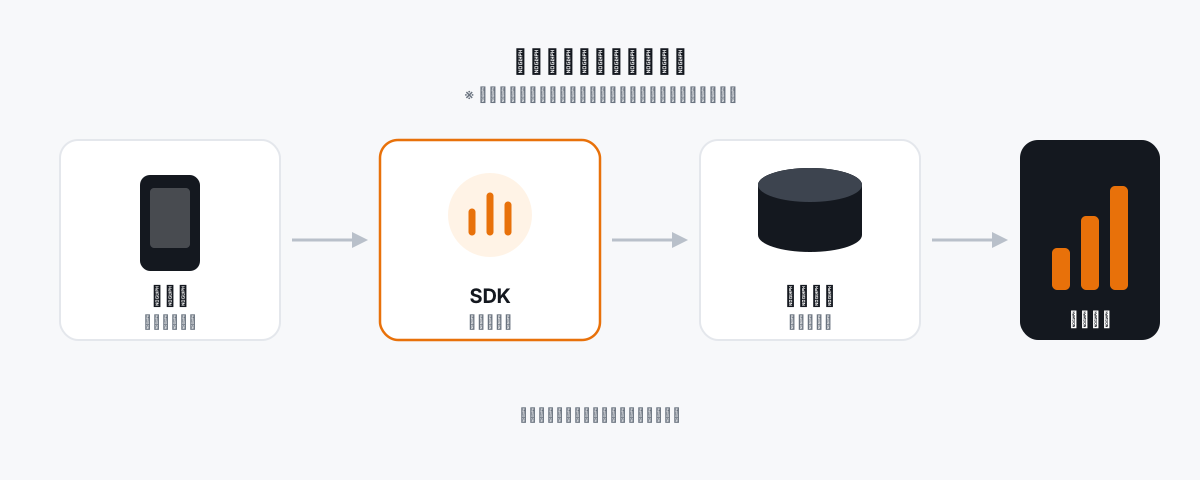
A diagram earns its place when it carries a relationship that would be long-winded in prose — an order, a branch, a mapping — rather than restating what the paragraph already said.
- Register the app in the Firebase console
- Add the configuration file to the project
- Initialise the SDK
Code sample
Code blocks render like this.
// Placeholder sample
analytics.logEvent("tutorial_complete", {
  "level": 3,
  "source": "onboarding"
});
Comparison table
| Aspect | Option A | Option B |
|---|---|---|
| Effort | Low | High |
| Flexibility | Limited | High |
| Best for | Getting something working | Production use |
Where people get stuck
Write this section symptom-first — "X doesn't appear", "Y shows zero" — because that is how people search.
Wrapping up
Recap in a few lines and point the reader at the next article.
From event design before implementation to post-release validation.
Get in touch